Updated: March 2005

More examples of Maya interface for Lightwave users.
Because I'm using the PLE version of Maya, all images are watermarked by Alias.

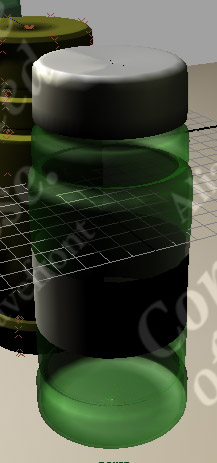 |
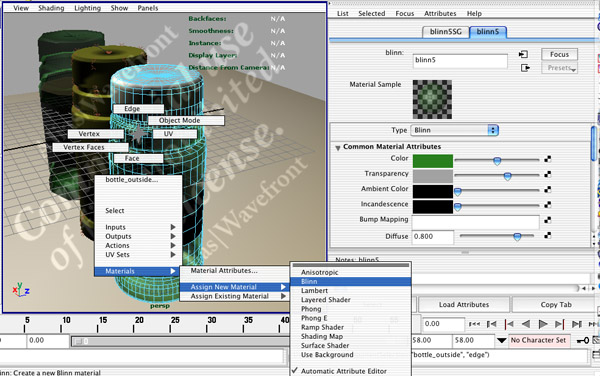
In Lightwave, you use the Surface Editor to edit an object's surface. In Maya, right-click(Windows) or Control-Click(Macintosh) the object to access marking menus (shown below). From there, you go to Material Attributes or Assign New Material to view or edit material attributes. |
|
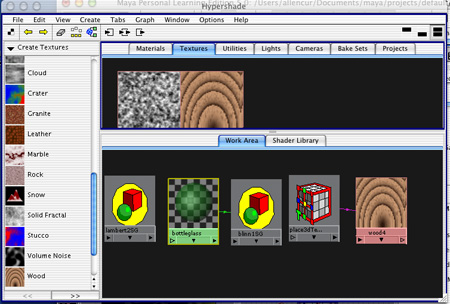
| Texturing Texturing in Maya is done using Hypershade, which involves visually connecting materials and textures to create "shading networks". Since this node-based system is totally different from Lightwave's approach, be prepared to spend some extra time learning to use Hypershade. |
 |
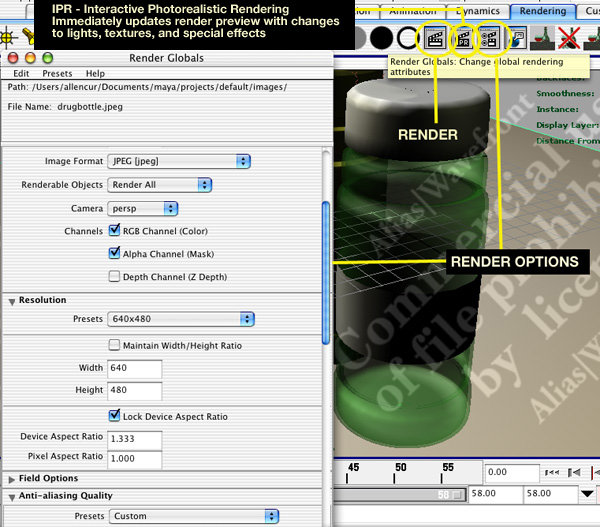 |
The icons/buttons for render options and rendering in Maya are highlighted in this screenshot. The default settings for rendering are not ideal so you definitely want to change them before rendering. For IPR rendering, you must select an area in the rendered preview to view interactive updates. |
| For items similar to Lightwave, use the Hotkey Editor to make custom keyboard shortcuts similar to Lightwave's. | 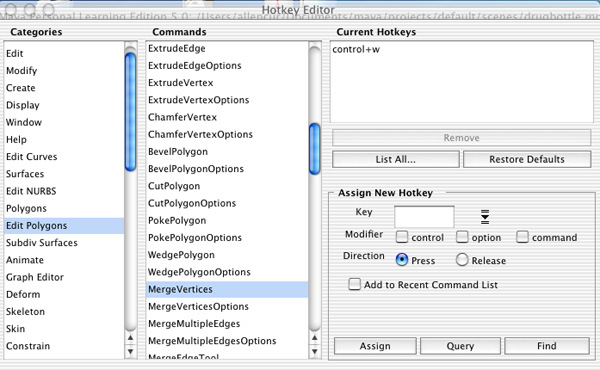 |
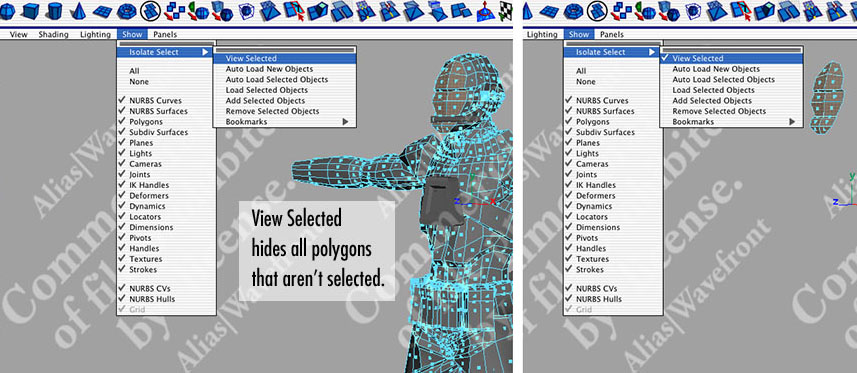
Hiding Polygons
 |
|
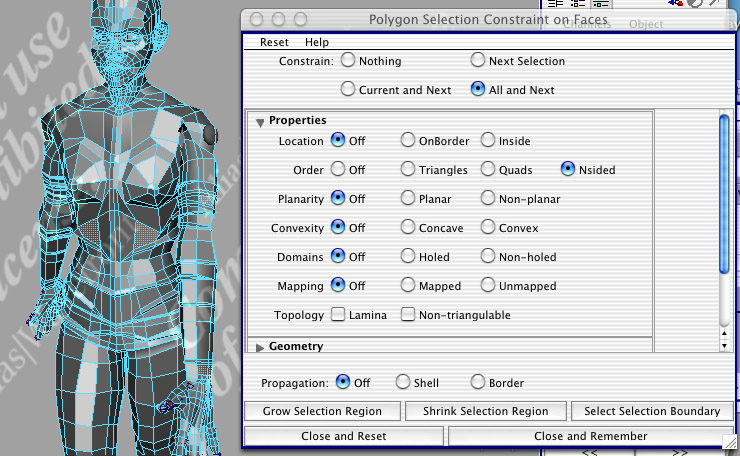
How do you find 5-sided polygons? This question keeps popping up, so I figured I'd throw it in here.
|
 |
Home Sketches 3D Art